
Get StakeClaimer running in just a few minutes.
After installing Tampermonkey in Chrome, you must enable "Allow User Scripts."
If this setting is OFF, StakeClaimer will not run at all.
Firefox does not require the Chrome "Allow User Scripts" step — continue straight to installing Tampermonkey below.
StakeClaimer runs through the Tampermonkey browser extension. It's free, takes under a minute, and lets your browser run the StakeClaimer userscript safely on Stake.
The extension store opens in a new tab. Click Add to Chrome and confirm.
chrome://extensionsTap COPY, then paste it into the Chrome address bar and press Enter. (Chrome blocks websites from opening this page directly.)

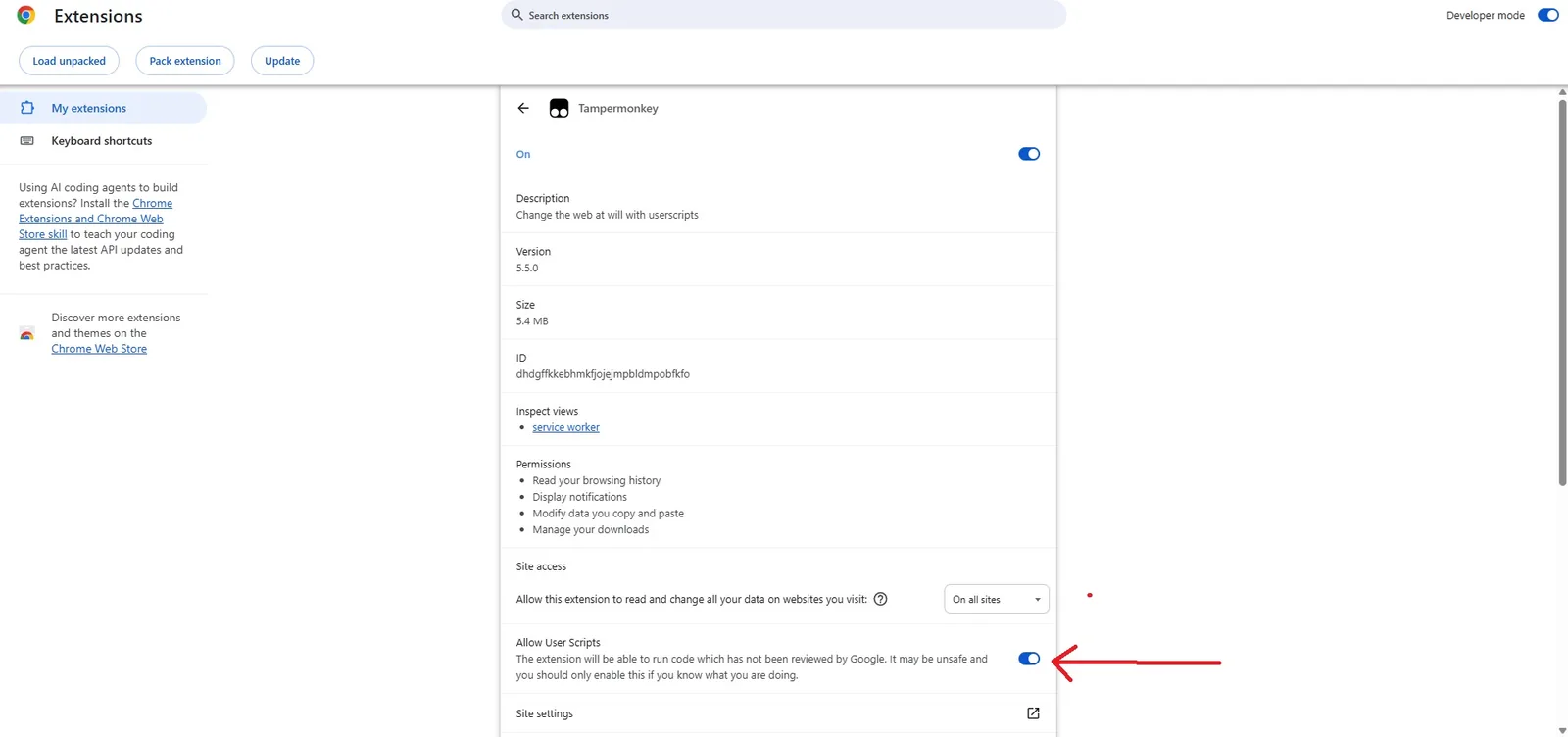
"Allow User Scripts" must be ON before StakeClaimer can run.
Chrome 138+ requires this permission for Tampermonkey userscripts to work correctly.
Click the button below. Tampermonkey will automatically open the StakeClaimer installation screen.
When Tampermonkey opens, click "Install".
Close all Chrome windows, then reopen your browser.
This ensures Tampermonkey and StakeClaimer start cleanly.
Log into your Stake account normally. StakeClaimer should automatically load and you'll see the StakeClaimer HUD at the top of the page.
If the status indicator is green, StakeClaimer is connected and ready to claim codes automatically.
StakeClaimer requires an active subscription.
Choose your subscription, complete payment and follow the activation instructions. Once activated, return to Stake and refresh the page.
Keep Stake.com open and logged in while StakeClaimer is running.
When a supported bonus code is detected, StakeClaimer handles the claiming automatically.
This is usually caused by "Allow User Scripts" being disabled.
chrome://extensionsThen: Tampermonkey → Details → Allow User Scripts → ON
Reload Stake.com.
Check that Tampermonkey is enabled in the Firefox extensions list, then reload Stake.com.
Then completely restart the browser.
Chrome Memory Saver can suspend inactive tabs, which pauses StakeClaimer.
Open Chrome → Settings → Performance and configure Stake.com so Chrome keeps the site active.
Stake may occasionally display Cloudflare Turnstile verification.
Complete the verification normally.
If verification repeatedly appears, network/IP reputation may be causing additional verification.
Your StakeClaimer account doesn't currently have an active subscription.
Open @stakeclaimer_stakebot and use /status to check your subscription.
If you've already paid and the subscription isn't showing correctly, contact StakeClaimer support.
Your computer must remain powered on and Stake must remain logged in while the userscript is running.
No VPS or server is required.
You don't need Tampermonkey.
StakeClaimer Mobile is designed specifically for Android.